Overview
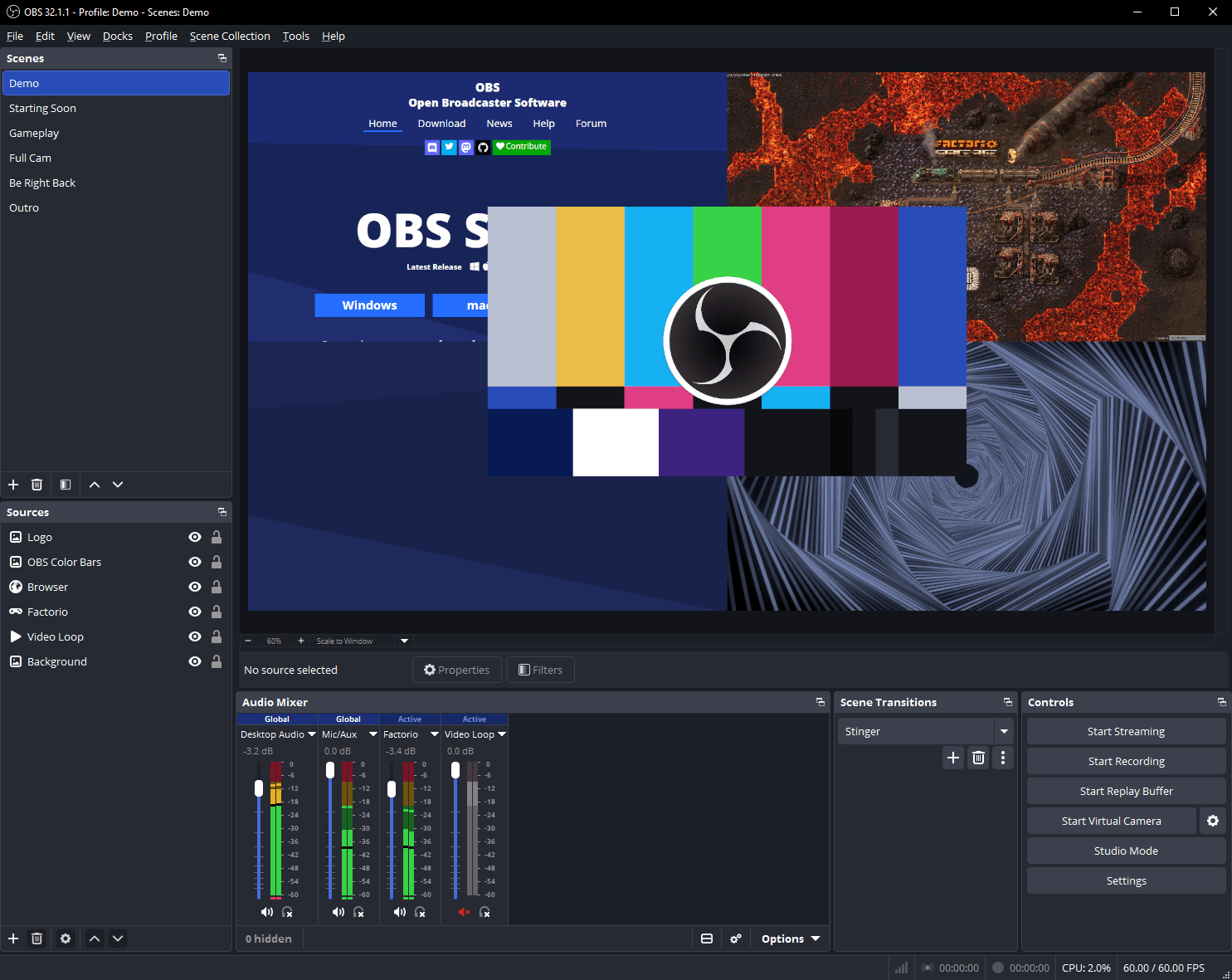
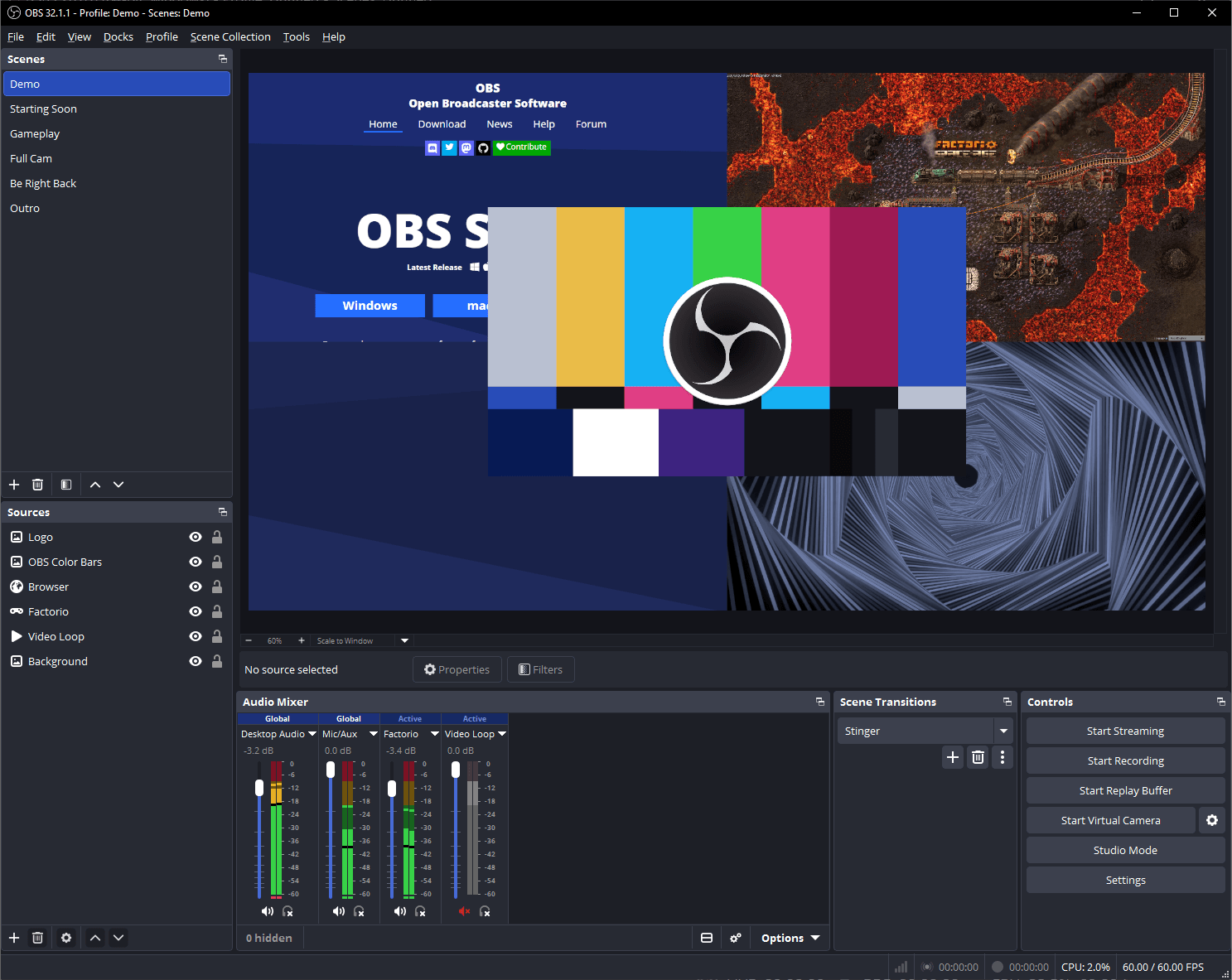
OBS Studio captures and mixes sources into recordings or live streams. It fits the recording side of a Camtasia workflow, but it is not a replacement for a full timeline editor. Plan a separate editing stage if the deliverable needs substantial post-production.
What it is for
- Record a display, window or camera with audio.
- Switch between composed scenes while streaming.
What to check first
- Check capture permissions, audio routing and available encoding capacity.
- Recording and streaming features do not provide a complete editing workflow.
A useful first test
Record a short screen-and-microphone sample, then verify text readability, audio levels and synchronization.
Cost and hosting
Free application; streaming services, equipment or plug-ins may have separate costs.
Primary sources
This is a review of official documentation and source repositories, not a hands-on certification. Test your own files before migrating.
Related comparisons
Alternative to Camtasia
Screen recording & tutorial editing
A recording application and a timeline editor may form a two-stage workflow.
Our take Record with OBS Studio, then evaluate Shotcut or Kdenlive for editing. This is a tool combination, not a single equivalent application.
Established options